Tutorial How To Broadcast on YouTube with Google Hangouts On Air
I recently covered the power of google hangouts, but didn't get into all of the mechanics on how. Actually I did a quick tutorial almost a year ago, but a lot has changed since then, so I'll try my best at capturing today's latest tech from Google Plus Hangouts.
Briefly let's explain what Google Hangouts is. Since about a year ago, they started merging existing messaging platforms like your GMail chat, into the group focused Google+ Hangouts. The plans are to do the same with Google Voice, and I imagine everything else into the Google Plus platform, such as YouTube comments already has been merged.
What this means is Google users have a Skype like group chat communication tool, with audio and video, up to 10 people, for free. It works in my web browser and as an app on my iPhone over 3G. The many points of integration to each site like G+, YouTube, GMail, and Google Voice can be confusing, but we'll try to demystify some of the common mistakes.
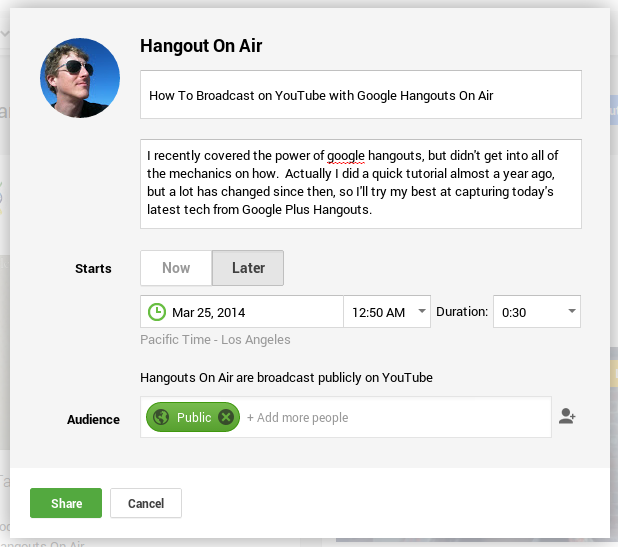
The window to create a new Hangout On Air allows you select "Later" and a calendar date & time you expect to start the event, as well as a duration. If you have specific individuals that you want notified of the event, you can include them from your contacts. It's worth noting that if you want your hangout recorded and published to YouTube, be certain that you're using Hangout On Air to start the call.
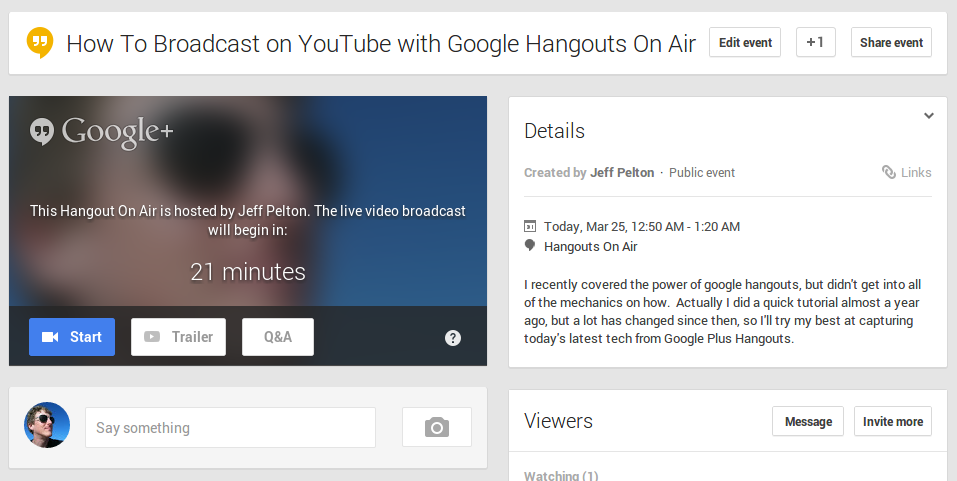
After clicking the "Share" button to create your event, you will be taken to the event detail page. If you don't have a blog or website, this is a good page to direct your followers to. From here you can create a trailer for the event, turn on the Q&A tool, invite, and interact with your audience.
Let people know that you're planning the event, allowing them to comment and ask questions ahead of time, and mark the date on their calendars for the live show. If you have a website, blog or other way of posting youtube videos, you can find the youtube.com video link provided under the Details section Links tab on the event page.
For some advanced settings you might need to dive into your YouTube page Live Events tab where you can see your upcoming hangouts and edit the video title and description and other options.
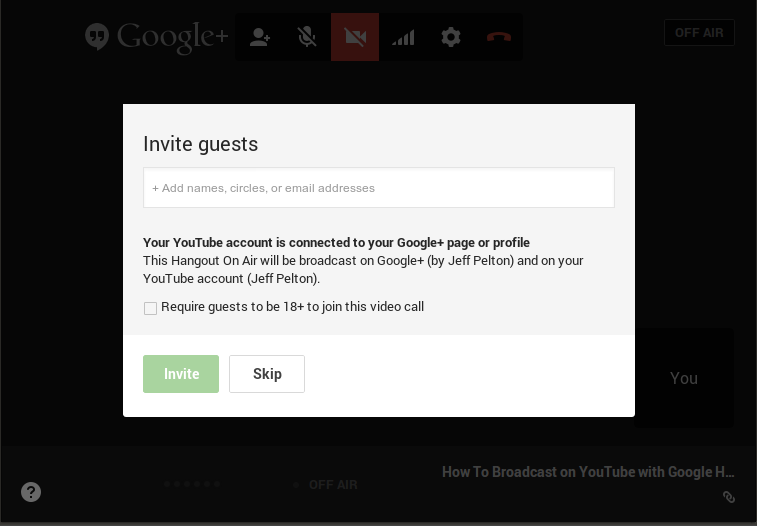
A new browser window or tab will open with the hangout. You'll be prompted to invite your guests to the hangout if you have any. You can also invite guests to join later by clicking on the invite button top center, or simply giving them the URL of the hangout you have open. This allows them to join as a participate in the hangout, while the YouTube link is for the audience to watch only.
You will see a progress meter bottom middle preparing for you to broadcast. Usually it takes only a minute to "prepare", which allows you to join your guests, test your microphone, webcam and screensharing if needed.
At the bottom to the right of the ON AIR light, you'll also see a counter showing the number of current viewers you have on YouTube and a link for the URL of the YouTube video and event pages.
During the broadcast you can use applications from the left bar such as the "Q&A", "Cameraman", "Control Room", and "Hangout Toolbox" to enhance your experience. They're mostly self explanatory and you'll be best off trying them yourself. The apps are also likely to change, which should continue to make the tools better.
There's a chat room for the participants on the right side of the hangout, that isn't displayed on screen of the YouTube video, great for sharing links and notes offscreen.
If you have more than one participant, one individual will be displayed larger at the center of the screen with the rest as thumbnails along the bottom. Google will automatically display the participant speaking to be shown. You can also manually choose to select which participant's video is full screen by clicking on them. As the host, what you see will also be the layout that YouTube records.
Once you've ended the broadcast, you won't be able to turn it one again using the same YouTube video ID. I'v had a browser crash, and reloading the page kept the show going, but I'd suggest being mindful with the host broadcast button. Obviously you can simply start a new hangout quickly, but it will have a new URL. Luckily there are several ways to put the pieces back together without video editing software.
The first thing you'll want to do it check the video detail page, and perfect the title, and description to include any pertinent details or links that you promised in the video.
Then you should consider commenting on the video to start a conversation and send it to friends.
If you're video was really long, or raw footage that needs to be edited down, or given a few titles and captions, try out the YouTube video editor from the web which seems perfectly capable of cuts, captions, etc. useful for cutting or stitching together videos at least.
When that's not enough, download the MP4 from your YouTube Uploads page from the video dropdown while in list view. They hide it, I know.
If you have a little bit of time for some extra detail or information, using simple annotations on YouTube video's allow you to link to extra information or detail that you might have left out during the live recording.
You also can add your videos to a playlist that will make it easier for your viewers to watch one video after another.
If things went really wrong, or someone spilled the beans, you can also make the YouTube video private, or unlisted instead of public.
Briefly let's explain what Google Hangouts is. Since about a year ago, they started merging existing messaging platforms like your GMail chat, into the group focused Google+ Hangouts. The plans are to do the same with Google Voice, and I imagine everything else into the Google Plus platform, such as YouTube comments already has been merged.
What this means is Google users have a Skype like group chat communication tool, with audio and video, up to 10 people, for free. It works in my web browser and as an app on my iPhone over 3G. The many points of integration to each site like G+, YouTube, GMail, and Google Voice can be confusing, but we'll try to demystify some of the common mistakes.
Step by Step
We'll take it one piece at a time, from preparation to editing your published video.- Plan the event
- Join the Hangout
- Start the Broadcast
- End the show
- Edit your YouTube video
Planning for Success
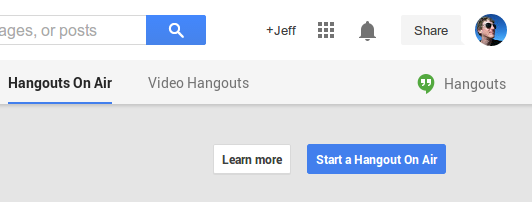
If you're going to setup a hangout for an event, you probably want to promote it ahead of time to drive traffic to the live broadcast. While you can create an event from the YouTube My Live Events page, I'd suggest creating it from the "Start a Hangout On Air" button on Google Plus which will create an event page for you on the social network, especially useful if you don't have your own blog or website to send people.The window to create a new Hangout On Air allows you select "Later" and a calendar date & time you expect to start the event, as well as a duration. If you have specific individuals that you want notified of the event, you can include them from your contacts. It's worth noting that if you want your hangout recorded and published to YouTube, be certain that you're using Hangout On Air to start the call.
After clicking the "Share" button to create your event, you will be taken to the event detail page. If you don't have a blog or website, this is a good page to direct your followers to. From here you can create a trailer for the event, turn on the Q&A tool, invite, and interact with your audience.
Let people know that you're planning the event, allowing them to comment and ask questions ahead of time, and mark the date on their calendars for the live show. If you have a website, blog or other way of posting youtube videos, you can find the youtube.com video link provided under the Details section Links tab on the event page.
For some advanced settings you might need to dive into your YouTube page Live Events tab where you can see your upcoming hangouts and edit the video title and description and other options.
Joining the Hangout
Once you're ready to start your event, simply visit the event detail page and click the "Start" button with the camera icon. You can also find your Live Events via their tab on YouTube and join from there.A new browser window or tab will open with the hangout. You'll be prompted to invite your guests to the hangout if you have any. You can also invite guests to join later by clicking on the invite button top center, or simply giving them the URL of the hangout you have open. This allows them to join as a participate in the hangout, while the YouTube link is for the audience to watch only.
You will see a progress meter bottom middle preparing for you to broadcast. Usually it takes only a minute to "prepare", which allows you to join your guests, test your microphone, webcam and screensharing if needed.
Broadcasting Live
Once you and your guests are ready to go live on YouTube, simply click the "Start broadcast" button at the bottom middle of the hangout window. Only the host of the event will be able to see and control this. You'll hear a couple of "dings" and the "OFF AIR" light should turn to "ON AIR".At the bottom to the right of the ON AIR light, you'll also see a counter showing the number of current viewers you have on YouTube and a link for the URL of the YouTube video and event pages.
During the broadcast you can use applications from the left bar such as the "Q&A", "Cameraman", "Control Room", and "Hangout Toolbox" to enhance your experience. They're mostly self explanatory and you'll be best off trying them yourself. The apps are also likely to change, which should continue to make the tools better.
There's a chat room for the participants on the right side of the hangout, that isn't displayed on screen of the YouTube video, great for sharing links and notes offscreen.
If you have more than one participant, one individual will be displayed larger at the center of the screen with the rest as thumbnails along the bottom. Google will automatically display the participant speaking to be shown. You can also manually choose to select which participant's video is full screen by clicking on them. As the host, what you see will also be the layout that YouTube records.
Sign Off
When you want the recording to stop, click the red "Stop broadcast" button at the bottom middle of your hangout as the host. The "ON AIR" light will turn off and you can continue your hangout with your guests without being broadcast on YouTube or captured in the recording.Once you've ended the broadcast, you won't be able to turn it one again using the same YouTube video ID. I'v had a browser crash, and reloading the page kept the show going, but I'd suggest being mindful with the host broadcast button. Obviously you can simply start a new hangout quickly, but it will have a new URL. Luckily there are several ways to put the pieces back together without video editing software.
Post Production
Now that you're masterpiece is in the can, you can relax and begin to think about polishing it up.The first thing you'll want to do it check the video detail page, and perfect the title, and description to include any pertinent details or links that you promised in the video.
Then you should consider commenting on the video to start a conversation and send it to friends.
If you're video was really long, or raw footage that needs to be edited down, or given a few titles and captions, try out the YouTube video editor from the web which seems perfectly capable of cuts, captions, etc. useful for cutting or stitching together videos at least.
When that's not enough, download the MP4 from your YouTube Uploads page from the video dropdown while in list view. They hide it, I know.
If you have a little bit of time for some extra detail or information, using simple annotations on YouTube video's allow you to link to extra information or detail that you might have left out during the live recording.
You also can add your videos to a playlist that will make it easier for your viewers to watch one video after another.
If things went really wrong, or someone spilled the beans, you can also make the YouTube video private, or unlisted instead of public.